

백틱 설정
이거 .sh 로 파일 설치해서 실행하면 됨
프로그램 설치
- https://shottr.cc/ 스크린샷 GOAT
~~ terminal ~~
주로 iterm2 씀
Ghostty
Ghostty is a fast, feature-rich, and cross-platform terminal emulator that uses platform-native UI and GPU acceleration.
ghostty.org
iTerm2 - macOS Terminal Replacement
iTerm2 by George Nachman. Website by Matthew Freeman, George Nachman, and James A. Rosen. Website updated and optimized by HexBrain
iterm2.com
Warp: The Agentic Development Environment
The fastest way to build with multiple AI agents, from writing code to deploying it. Trusted by over half a million engineers, Warp gives developers speed, privacy, and control to ship faster.
www.warp.dev
~~ 생산성
알프레드 (preference 백업 가져와야됨) → raycast 는 공짜긴한데 구독제라서 알프레드 씀 취향차이
Alfred - Productivity App for macOS
Control Your Music You're the boss. Boost your productivity by controlling your Mac using Alfred's deep integration with macOS. Swiftly take action on files and contacts, control your music player and dispatch System commands. Add some fun to your day; Tur
www.alfredapp.com
~~ 앱스토어 ~~
- 마그넷 (옛날에 돈주고 삼 ㄱ- 요즘은 rectangle 쓰면 됨. 공짜임)
https://apps.apple.com/kr/app/magnet/id441258766?mt=12
Magnet 앱 - App Store
App Store에서 BOOTCODE A.S.의 Magnet 앱을 다운로드하십시오. 스크린샷, 평가 및 리뷰, 사용자 팁, Magnet 앱과 비슷한 다른 게임들도 만나볼 수 있습니다.
apps.apple.com
- structured (스케줄러)
Structured - 데일리 플래너 앱 - App Store
App Store에서 unorderly GmbH의 Structured - 데일리 플래너 앱을 다운로드하십시오. 스크린샷, 평가 및 리뷰, 사용자 팁, Structured - 데일리 플래너 앱과 비슷한 다른 게임들도 만나볼 수 있습니다.
apps.apple.com
- session (타임 트래커)
Session - 일, 공부, 집중 타이머 앱 - App Store
App Store에서 Translucent LLC의 Session - 일, 공부, 집중 타이머 앱을 다운로드하십시오. 스크린샷, 평가 및 리뷰, 사용자 팁, Session - 일, 공부, 집중 타이머 앱과 비슷한 다른 게임들도 만나볼 수 있습
apps.apple.com
- Rize (지금은 사용 안하고 있으나 추후 구독 고려 중)
Rize - Automatic Time Tracking for Agencies & Freelancers
Track billable hours automatically with AI. No timers, no friction. Get accurate time data for client billing and project management.
rize.io
- Bear 메모장으로 제일 무난 추천.
베어 - 작문 및 markdown 편집자 앱 - App Store
App Store에서 Shiny Frog Ltd.의 베어 - 작문 및 markdown 편집자 앱을 다운로드하십시오. 스크린샷, 평가 및 리뷰, 사용자 팁, 베어 - 작문 및 markdown 편집자 앱과 비슷한 다른 게임들도 만나볼 수 있습니
apps.apple.com
Homebrew + setup
# brew 설치
$ /bin/bash -c "$(curl -fsSL https://raw.githubusercontent.com/Homebrew/install/HEAD/install.sh)" \\n  && eval "$(/opt/homebrew/bin/brew shellenv)" \\n  && brew install bash \\n  && bash


$ brew install --cask ghostty # terminal
$ brew install secretive # ssh agent
$ brew install zsh-syntax-highlighting # oh-my-zsh 설정
$ brew install mise
$ echo 'eval "$(mise activate zsh)"' >> ~/.zshrc

$ brew install --cask figma
$ brew install --cask notion
$ brew install --cask notion-calendar
$ brew install docker
$ brew install --cask gitkraken
$ brew install --cask claude-code
$ brew install --cask slack
$ brew install --cask orbstack
$ brew install --cask cursor
$ brew install --cask warp
$ brew install --cask datagrip
$ brew install --cask microsoft-edge
---
Secretive Agent + GitKraken
https://github.com/maxgoedjen/secretive
일반적으로 private key 는 ~/.ssh/id_rsa 같은 파일로 저장되는데,
- Secretive 는 Private key를 Secure Enclave (Mac의 보안 칩)에 저장함
→ 즉 파일로 존재하지 않음 → 추출 불가능 → 매우 안전함
→ 대신 SSH Agent라는 중개자를 통해서만 접근 가능 (소켓 파일을 통해서 통신함)
[Git] → "서명해줘" → [SSH Agent (Secretive)] → [Secure Enclave] → [Touch ID 인증] → 서명 완료
GitLab selfhosted + 깃 크라켄 + Secretive 에이전트 쓰면 GUI 로 접근하려니까 인증 에러나서 해결 방법 기록함
$ open -e ~/.zshrc 터미널로 열어서
launchctl setenv SSH_AUTH_SOCK "$HOME/Library/Containers/com.maxgoedjen.Secretive.SecretAgent/Data/socket.ssh"
으로 해결함. (launchctl setenv는 macOS GUI 앱들이 사용하는 환경변수를 설정하는 명령어)
vim ~/.gitconfig 에서 이렇게 바꾸면 됨
[user] signingKey 는 secretive 경로를 바라보고 있음
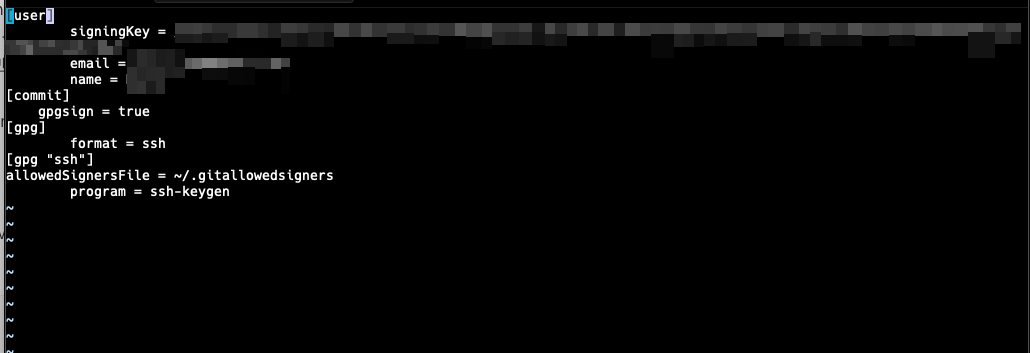
그리고 preference > commit signing 에서는 GPG ssh Program 을 ssh-keygen 으로 값 맞춰줌

또는
https://github.com/maxgoedjen/secretive-config-instructions/blob/main/apps/gitkraken.md
secretive-config-instructions/apps/gitkraken.md at main · maxgoedjen/secretive-config-instructions
Community-maintained app configuration instructions for Secretive - maxgoedjen/secretive-config-instructions
github.com
다른 방법으로는 공식문서에서 제안한 방법도 있음
이거 git gpg commit sign 하는거 config 넣어둬서 그런듯 ; 걍 sign commits by default 체크 해제하니 문제없어짐
---
TO BE CONTINUED (의식의 흐름 ㅈㅅ)